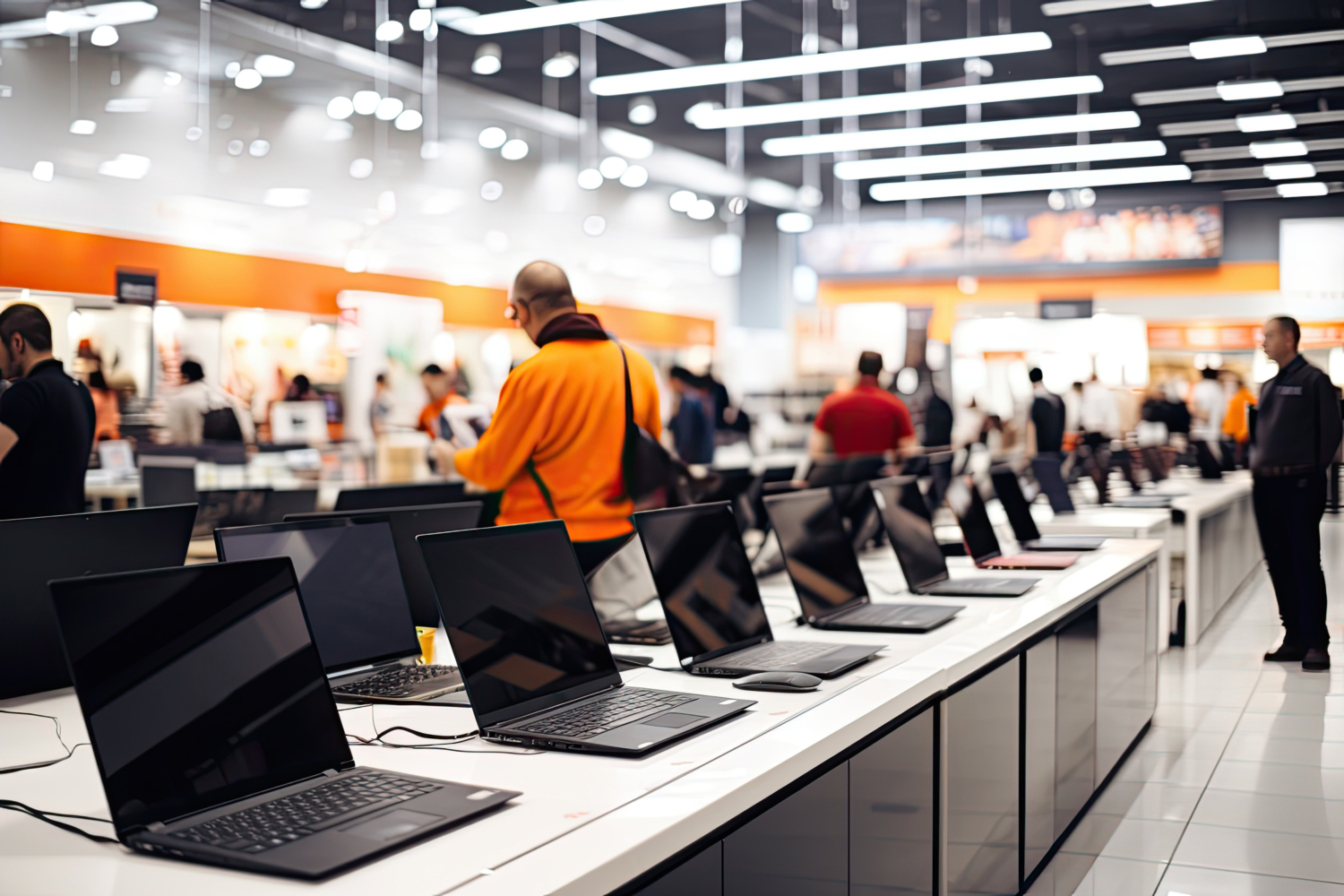
Looking for the right computer

Anyone wanting to buy a new computer faces many decisions. Some of these are general questions such as: “Laptop or desktop PC?” or technical questions such as: “Conventional hard disk or SSD?”. The decisions are usually not easy, as they generally depend on several factors, in particular the price level and the demands placed on the computer. In addition, many people understand too little about the technology and are therefore unable to make some of the decisions optimally.

So how should you go about looking for a new computer? We have put together a list for you that sets out the most important questions, reveals important facts and simplifies the path to a new PC. But first, one thing should be said: if you need support in buying a new computer or laptop, you have come to the right place.

1. Processor

The processor is responsible for the “computing power”. Advertising often suggests that a fast processor automatically means a fast PC. In principle this is true, but a poor PC with a fast processor is still not a fast PC.

For the processor, the choice is usually between Intel and AMD (manufacturers). Intel is essentially the Mercedes, but AMD CPUs are by no means bad; however, as they are cheaper, they are generally used for inexpensive PCs (low budget).

As far as speed is concerned, a dual core is perfectly sufficient for most people; quad core processors generally make sense for graphic designers, architects, video editing and 3D designers. Even for image editing, a dual core processor is already sufficient.

Important: There are different versions of CPUs with different energy requirements. CPUs with the same performance but lower consumption often cost less when calculated over the total operating life of the PC.

2. RAM

The working memory (RAM) is responsible for the fast responsiveness of programs that are already open. Those who frequently have several programs open at the same time need more RAM; those who only use a few applications at once are already well served with 4 to 8 GB of RAM.

RAM is also needed in particular for graphics and video editing. For this, a new PC should provide at least 8 GB of RAM.

Important: Anyone who wants more than 3 GB of RAM in their new PC should definitely install a 64-bit operating system.

3. Hard disk

There has been a change in hard disk technology for some years now. The magic word is SSD (Solid State Disk). Unlike conventional hard disks, these do not work with rotating platters but rather like a USB stick, without moving parts. The advantages include:

The big disadvantage is the price. For comparison:

One gigabyte of storage costs around €0.03 on a conventional hard disk; on an SSD it costs about five times as much at €0.15.

The reason we nevertheless often recommend SSD drives is that most users need hardly any storage space. Advertising often promotes 1000 GB (1 TB) and more, but our experience is that most customers only use 50-200 GB. So if you use little storage, an SSD is recommended. Otherwise, you should consider using a fast, smaller SSD (120-240 GB of storage) for the operating system and a conventional hard disk as data storage for photos and videos (where speed is not so important anyway).

Important: In around 90 % of PCs, the conventional hard disk is the bottleneck and slows down the entire system considerably. An HDD is only recommended for backups or archives of more than 1 TB.

4. Graphics

Customers who do not play demanding 3D games are best served with onboard graphics. Playing back Full HD videos is no problem for these either. Only those who do not want to do without demanding 3D games such as action shooters, racing games or demanding simulation games need an additional graphics card. Here the choice should fall on an actively cooled model; in our experience, passively cooled models quickly get hot when gaming and thus lead to an unstable system. The choice of the graphics card itself is primarily a question of budget. In principle, you should know that price drops are particularly steep here, and that it is better to take a previous-generation model and upgrade it after some time instead.

Important: Large graphics cards need a powerful power supply unit.

5. Mainboard

The decision on the mainboard usually follows from the decisions on the components. In principle, you should not choose any “cheap suppliers” here, as these generally do not run as stably as branded boards. Furthermore, the mainboard should provide at least USB 3.0 and SATA 3 ports.

6. Monitor

The choice of monitor is primarily a choice of size. At first, most people think they do not need an overly large screen, but once you have worked with one for a while you will not want to do without it. People with impaired vision in particular should choose a larger device, as the elements can be displayed larger. The power consumption of the devices should not be underestimated either. This can differ enormously in some cases. The monitor should have at least the following features: HDMI, DVI and VGA inputs and built-in speakers; some devices also have additional USB ports, which generally prove very practical as they are more easily accessible on the desk.

7. Keyboard and mouse

For input devices, the choice is primarily between wired and wireless. Wireless devices (especially mice) have no annoying cable. In general, however, they are always somewhat less reliable and changing the batteries is a nuisance. For desktop PCs, most customers therefore choose wired devices. The second question is the look; here everything is a matter of taste and therefore your decision.

8. Case and power supply unit

The case is usually a question of size and looks. External USB and audio ports are standard. The space available for drives is usually rather too large. With the power supply unit, attention should be paid to energy efficiency. Only those without onboard graphics and/or with a quad core CPU need outputs above 350 watts.
Important: Do not skimp on quality when it comes to the power supply unit. Along with hard disks, power supply units are the components that fail most frequently.

9. Software

As an operating system, only Windows 10 is generally worth considering nowadays.
Furthermore, Office (e.g. Microsoft Office Home and Student 2019) should not be missing. You do not need to buy a virus scanner, as one is already integrated in Windows 10.
When choosing between the 32-bit and the 64-bit version, the 64-bit version should be chosen in any case (among other things because it can manage more than 3 GB of RAM).

11. Alternatives

Instead of a conventional, large PC, you can now also buy small, energy-saving PCs. The hardware is similar to that in a laptop. In terms of performance, the so-called thin clients are perfectly adequate for office and internet use. Power consumption is considerably lower than with a conventional computer; the devices are also quieter and take up hardly any space. In terms of price, however, they are somewhat more expensive relative to their performance.

MCL Computer-Spezialisten.de GmbH