
SSD and HDD compared – advantages and disadvantages
Whether as a worthwhile upgrade for an old computer or as the centrepiece of a new purchase: solid-state drives (SSD) can make everyday computer use significantly faster. Anyone who wants to know everything about the advantages and disadvantages of the new drives compared to the old hard disk drives (HDD) can find out here:
Table of contents
- Technical differences between HDD and SSD
- Advantages of the SSD
- Disadvantages of SSD drives
- Recommendation
When people talk about the speed of a computer, most users think of the processor. With ever higher clock frequencies and ever more processor cores, manufacturers promise ever faster computers. The computing power of a PC is indeed one of the most decisive factors that determine speed – but even the most modern processor can only process data as fast as it can be read in.
The rather inconspicuous hard disk is the bottleneck in many systems. For some years now, so-called SSDs have promised a remedy. Compared to traditional hard disks, these solid-state drives work with far higher write and read speeds and can thus make even older PCs noticeably faster.
1. Technical differences between HDD and SSD
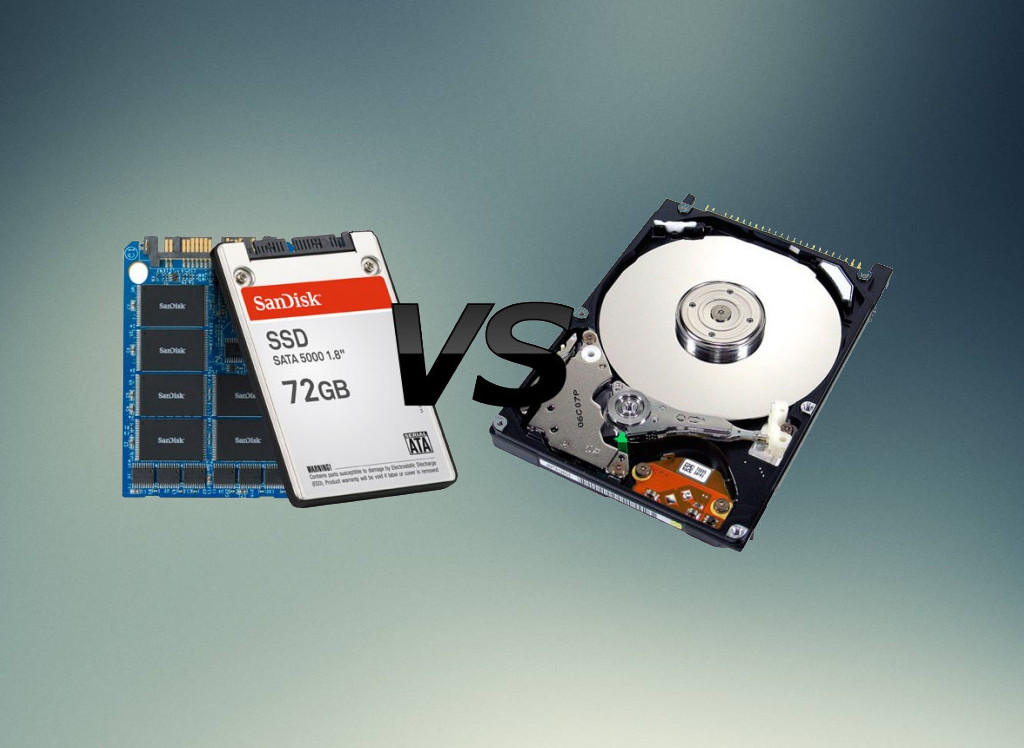
SSDs, similar to RAM or USB storage for example, consist of permanently mounted microchips, whereas classic hard disks consist of moving individual parts. The read and write head of a hard disk, similar to a CD or vinyl record, has to be mechanically guided to the exact spot where the data is stored. These constant movements severely limit performance and are all too often the cause of wear-related defects. Since SSDs work without these components, they are clearly superior in many cases.
2. Advantages of the SSD
As already mentioned, speed above all is the clear strength of the SSD. It can, for example, halve the boot time of the operating system and launch resource-intensive programs up to four times faster. In addition, the performance of SSDs is far less affected by factors such as fragmentation and is therefore more consistent.
Solid-state drives are, however, also superior with regard to secondary properties. The delicate small parts used in classic hard disks are susceptible to external influences. Vibration or knocks, to which SSDs are immune, can cause errors and even irreparable damage in old-fashioned hard disks. The more compact and lighter SSDs also consume significantly less power by comparison, generate no noise and hardly any heat.
SSDs are therefore also becoming increasingly popular for use in laptops. The lower power consumption increases battery life, the design reduces the overall weight and heat generation, and the resistance to external influences, which occur more frequently with mobile devices in particular, guarantees error-free operation.
SSD prices have now become so low that mechanical hard disks are really only worthwhile in the rarest of cases:
| MVMe SSD | SATA SSD | Hard disk | |
| Cost (as of 10/2020) | €0.10 per gigabyte | €0.08 per gigabyte | €0.03 per gigabyte |
| Serious errors | Very rare | Very rare | Very rare |
Overall, then, reliability is a major plus point. These drives now have a longer life expectancy than their mechanical counterparts. Fewer individual parts mean fewer sources of error.
At a glance, the advantages are:
| NVMe SSD | SATA SSD | Hard disk | |
| Transfer speed | Up to 3500 MB/s | Up to 600 MB/s | Up to ~150 MB/s |
| Power consumption | Approx. 6 watts | Approx. 8 watts | Approx. 10 watts |
| Weight, size, temperature | Low | Low | High |
| Sensitivity to shocks | Low | Low | High |
| Susceptibility to errors | Low | Low | Higher |
3. Disadvantages of SSD drives
Recovering an SSD is more complex than with an HDD. That said, a proper data backup is always a must!
Unlike classic hard disks, SSDs cannot be overwritten an unlimited number of times without losing performance. In everyday use, this aspect is hardly of any significance thanks to the technological advances of recent years, but unnecessary write and delete operations, such as those caused by defragmentation programs, should still be avoided.
4. Recommendation
Anyone who works frequently with a PC or does not have particularly high storage requirements overall should not be asking whether an SSD is a sensible addition, but rather which SSD is suitable for their personal needs. For most users, the targeted use of an SSD without a traditional drive will be the best solution. When buying a new computer or laptop, we always recommend at least a 240 GB SSD. An SSD upgrade is also worthwhile especially for older devices from an Intel Core i3 upwards and PCs that are less than 5 years old.
Smaller SSDs with a capacity of 240 GB are already available from around €25 and offer enough space for essential functions that benefit most from the improved speed. In addition to the operating system, all programs should also be installed on SSDs to get the greatest benefit. Large amounts of data, on the other hand, such as music collections or digital photo albums, can remain on the old disks.
Most modern operating systems are already optimised for the use of SSDs. For those interested, however, there are many beginner-friendly tips and tricks on the internet on how to further optimise an SSD system.
Overall, a solid-state drive is one of the best investments for anyone who wants to get as much as possible out of their computer with as little effort as possible. We ourselves have therefore been using SSD drives exclusively in our own computers and our customers’ computers since around 2016.
If you have questions about data backup or SSDs, or would like to benefit from them, we are happy to advise you or put together offers for you.